Enable browser pop ups
How to enable browser pop ups for Chromium and Firefox and their forks.
Introduction
When selecting rows in the status page table, you have the option to open multiple status pages in your browser, however, for this feature to work properly, you need to enable popups for Miru. This guide will show you how you can do that for major browsers.
Google Chrome or Chromium
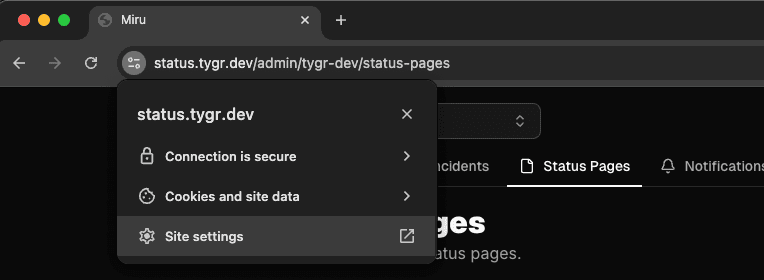
- In the left side of your URL bar, click the permission panel icon:

- Click on "Site Settings"
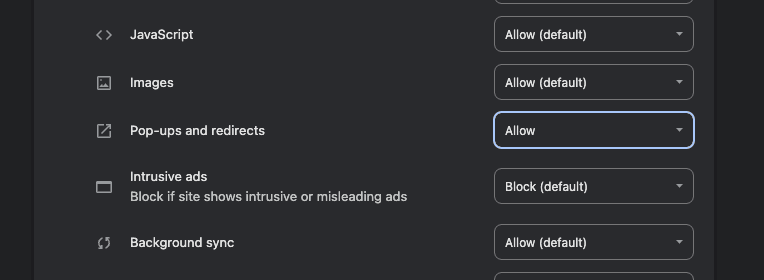
- Scroll down until you see "Pop-ups and redirects", and set it to "Allow".
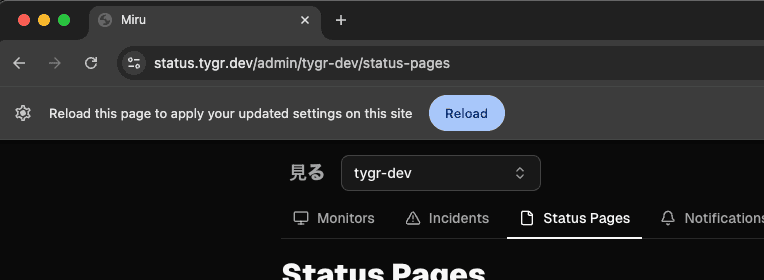
- Heading back to Miru, you should see this message. Click "Reload" and you're done!
Firefox
- In the left side of your URL bar, click the padlock icon:
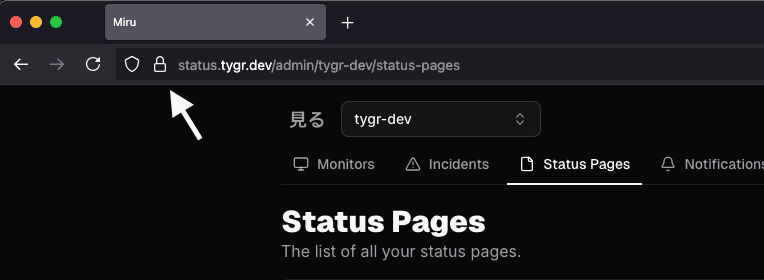
- Click "Connection secure".
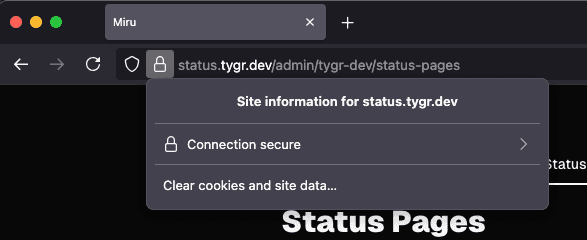
- Click on "More information".
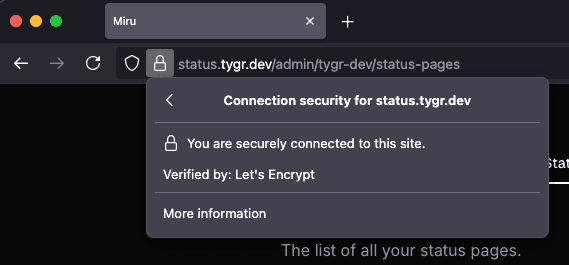
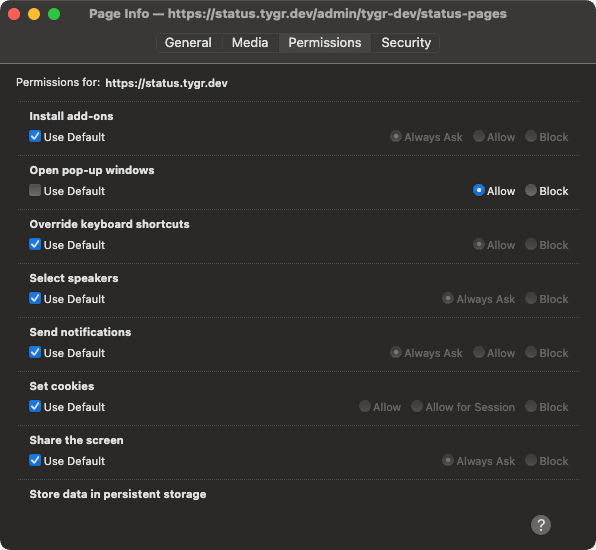
- Under the "Permissions" tab, scroll down until you see "Open pop-up windows", uncheck "Use Default" and set it to "Allow".